Get Your Google Form Answers by Email, Free, with a Short Script
Get every Google Form entry emailed to you with all the answers in it, free, using a short copy-and-paste script. Built and tested step by step, with screenshots.

Track: Google Workspace. Level: beginner. Time to set up: about 15 minutes. Cost: free. Last checked: November 2026.
Google Forms can tell you someone has filled in your form, but its email doesn't say who or what they wrote. This guide adds a short script to your response sheet. Every new entry then reaches your inbox with all the answers in it, and clicking Reply goes straight to the customer. No extra tools and no monthly plan.
Shed Tested. We built this ourselves on 15 November 2026, using a free Gmail account, Google Forms and Google Sheets, and took the screenshots as we went. It took us about 15 minutes. Two things didn't match what we expected. Google shows a scary "hasn't verified this app" warning for your own script. And the permission screen now has tick boxes that start empty. The steps below cover both.
Check what you already have. If you'd rather not touch a script, our Make version of this alert does the same job with clicks instead of code. It needs a free Make account and only checks once an hour. This script needs nothing extra and runs the moment someone presses Submit.
Before you start
- A Google Form that saves to a Google Sheet. In Google Forms, click Responses, then Link to Sheets, then Create. If you can't see that button, click the three dots at the top right, choose Select destination for responses, then Create a new spreadsheet.
- The form should have questions called Name and Email. If yours are worded differently, that's fine. Step 2 shows where to change them.
- About 15 minutes. You don't need to know how to code. You'll copy and paste.
Step by step
1. Open Apps Script. Open your form's response sheet. In the menu at the top, click Extensions, then Apps Script. Apps Script is Google's free tool for adding small automations (scripts) to its apps. It opens in a new tab.
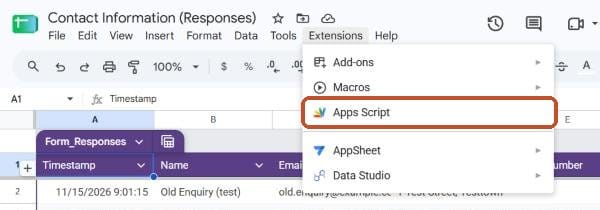
2. Paste in the script. You'll see a file called Code.gs with a few lines in it. Select everything in it and delete it. Then copy the script below and paste it in.
// Form alert with the answers in it, from The Automation Shed.
// Sends you an email each time someone fills in your Google Form.

// Who gets the alert. Leave it as '' to send it to yourself.
const SEND_TO = '';

// The question whose answer goes in the subject line.
const NAME_QUESTION = 'Name';

// The question that holds the person's email address,
// so that clicking Reply goes straight to them.
const EMAIL_QUESTION = 'Email';

function sendFormAlert(e) {
  const sheet = e.range.getSheet();
  const questions = sheet.getRange(1, 1, 1, sheet.getLastColumn()).getValues()[0];
  const lines = [];
  let name = 'your form';
  let email = '';
  questions.forEach(function (question, i) {
    const answer = e.values[i] || '';
    lines.push(question + ': ' + answer);
    if (question === NAME_QUESTION && answer) name = answer;
    if (question === EMAIL_QUESTION) email = answer;
  });
  const options = {};
  if (email.indexOf('@') > 0) {
    options.replyTo = email;
  }
  const to = SEND_TO || Session.getEffectiveUser().getEmail();
  MailApp.sendEmail(to, 'New enquiry from ' + name, lines.join('\n'), options);
}
If your questions aren't called Name and Email, change the words inside the quote marks on those two lines to match your form exactly.
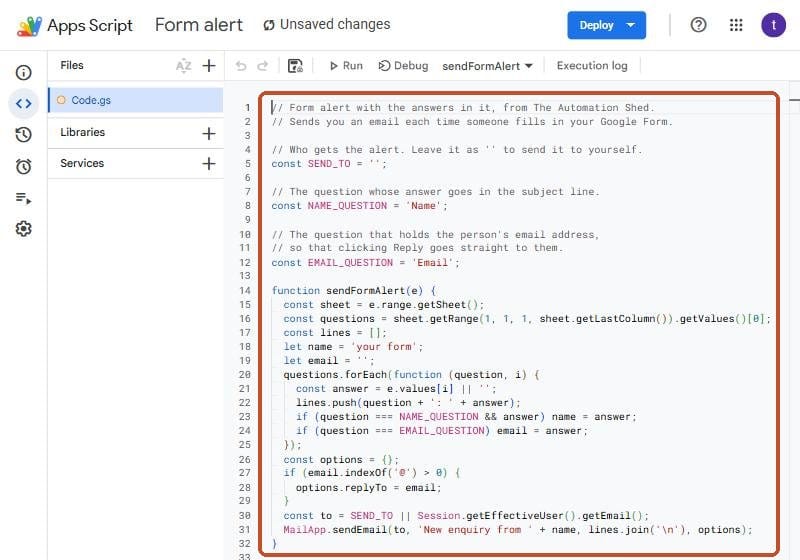
3. Name it and save. Click Untitled project at the top and call it something you'll recognise, such as Form alert. Then click the save icon (the small disk) in the toolbar. It should say Saved to Drive.

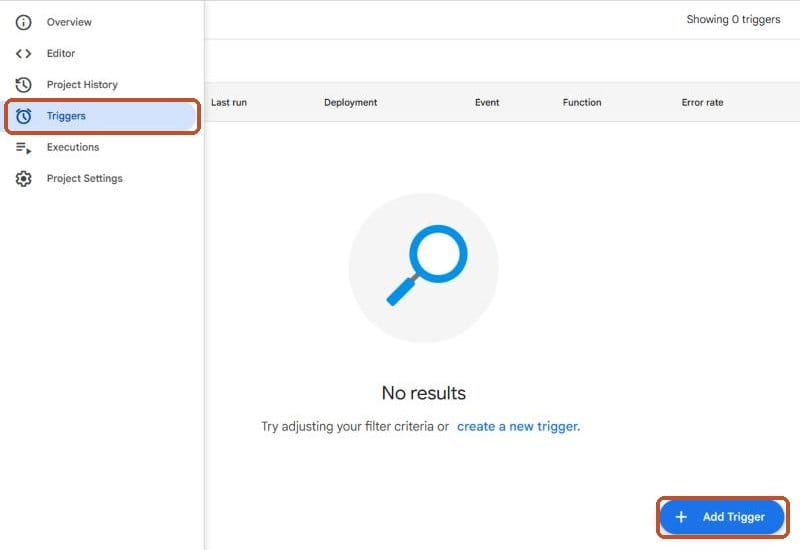
4. Open Triggers. A trigger (the event that starts the script) tells Google when to run it. Click the clock icon on the left to open Triggers, then click Add Trigger at the bottom right.
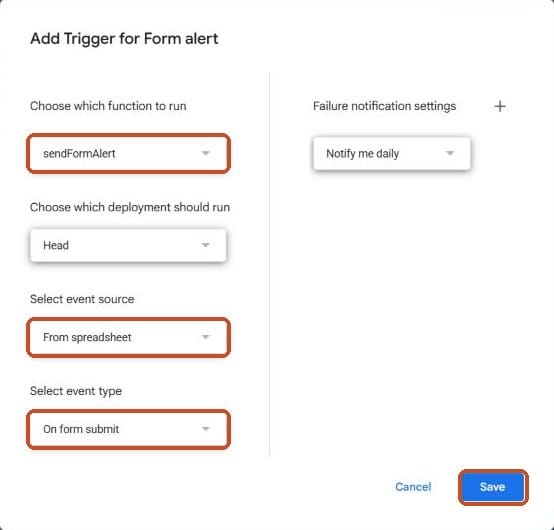
5. Set it to run on each new entry. Leave the first three boxes as they are: sendFormAlert, Head and From spreadsheet. Change Select event type to On form submit. Click Save.
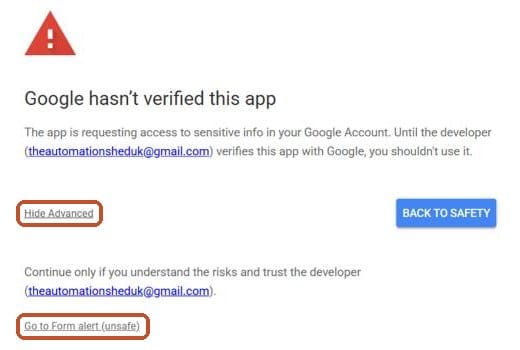
6. Get past Google's warning. A window opens saying Google hasn't verified this app. That's expected. The "app" is the script you just pasted, and the developer it names is you. Click Advanced, then Go to Form alert (unsafe).
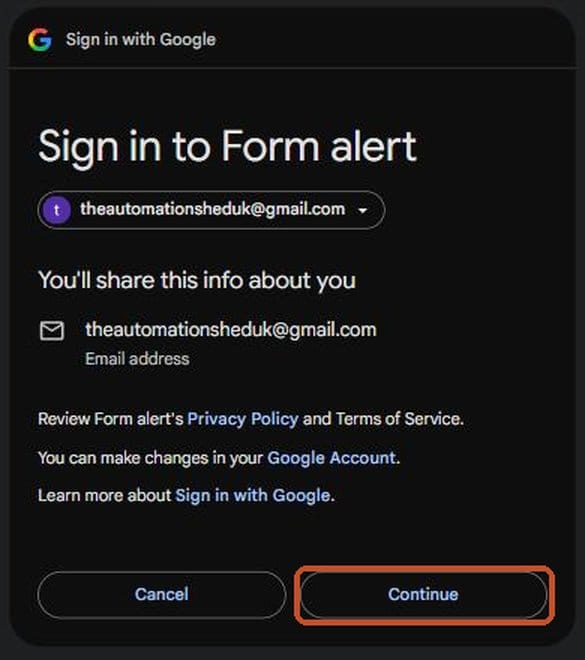
7. Allow it. Choose your Google account and click Continue.
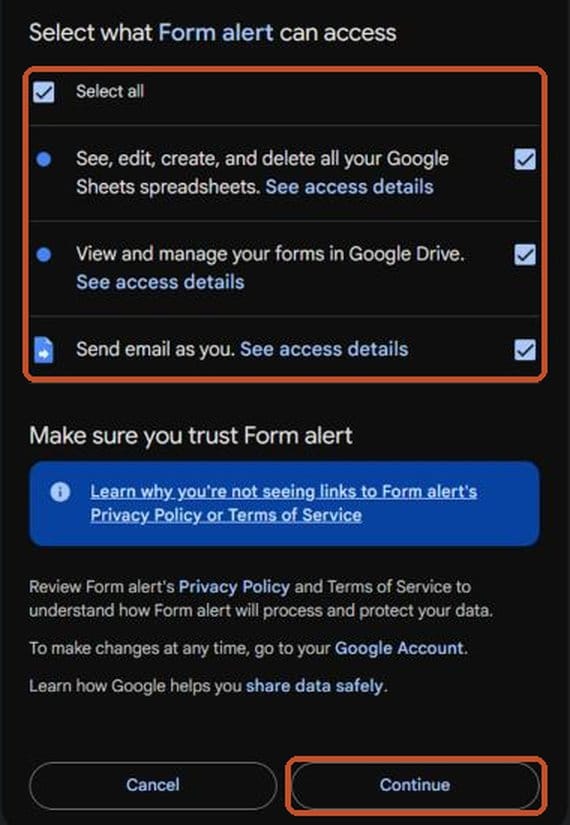
On the next screen, tick Select all. The boxes start empty, and the script can't send anything without them. Then click Continue.
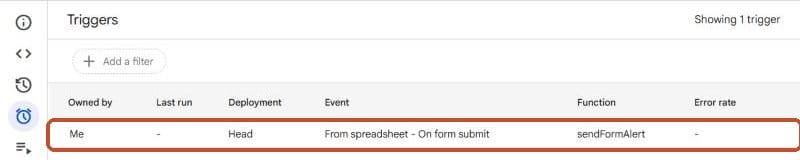
8. Check the trigger is there. Back on the Triggers page, you should see one line saying From spreadsheet - On form submit.
9. Test it. Open your form as a customer would, fill it in with made-up details, and press Submit. Within a minute, an email arrives with every answer in it, in the same order as your form. Click Reply and it's addressed to the customer.
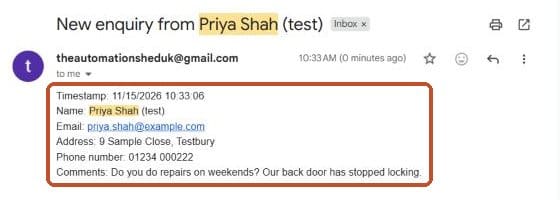
That's it. It runs on its own from now on, even when your computer is off.
If it doesn't work
- You clicked Run and got "Cannot read properties of undefined": that's normal. The script only works when the form is submitted. Test it with the form instead.
- No email arrived: click the list icon on the left (Executions) in Apps Script. A red Failed line means something went wrong.
- The subject says "New enquiry from your form": your name question isn't called Name. Change it on that line of the script (step 2) and save.
The reality check
Google's warnings are about your own script. "Unverified" only means you haven't sent the script to Google for checking, which nobody does for their own use. Google will also email you a security alert saying you allowed Form alert access. That's expected too. The flip side: only paste scripts from people you trust, because the same screens appear for anyone's code.
There's a daily limit. Scripts on a free Gmail account can email up to 100 people a day. On Google Workspace it's 1,500. We checked Google's quota page on 15 November 2026. Each alert counts as one, so most small businesses won't come close.
It depends on the question names. If you rename the Name or Email question in your form, change the script to match. Adding new questions is fine. They appear in the email automatically.
Your customers' details stay with Google. Unlike a tool such as Make, nothing passes to another company. It still counts as handling personal data, so think about UK GDPR (the UK's data protection law), as you would for the form itself.
Check it for the first week. Compare your form's number of responses with the alerts you've had. The Executions page in Apps Script lists every run.
Official pages to check
- Google Apps Script: Installable triggers
- Google Apps Script: Quotas for Google services
- Google Docs Editors Help: Choose where to save form responses
This guide is independent and drafted with AI, then reviewed and fact-checked against hands-on experience with these tools before publishing (see How we make our guides). Tool interfaces change from time to time — if a button has moved, the overall steps still apply. The tools named are common examples, not the only options.
Free members get the "plus" starter kit, with a customer thank-you email and alerts for more than one person, and our full troubleshooting notes in the Workbench below.