Stop Retyping the Same Emails: Gmail Templates and Automatic Replies
Save the replies you type again and again as Gmail templates, and set an away message for when you are out. Free, built into Gmail, and tested step by step.

Track: Google Workspace. Level: complete beginner. Time to set up: about 10 minutes. Cost: free. Last checked: November 2026.
If you type the same reply to every quote request, booking or "is this still available?", Gmail can save it for you. This guide sets up templates you can drop into any email in two clicks, and an automatic reply for when you're away. Both are built into Gmail and cost nothing.
Shed Tested. We set this up ourselves on 15 November 2026 on a free Gmail account, and took the screenshots as we went. It took us about 10 minutes. One thing didn't match what we expected. Templates are switched off until you turn them on in a settings tab most people never open. Step 1 covers it.
Check what you already have. If you only need the same sign-off on every email, a signature does that without templates. It's in Settings, then See all settings, then General, then Signature. Templates are for whole replies.
Before you start
- A Gmail or Google Workspace email account, opened in a web browser on a computer. The steps below use the computer version of Gmail. Templates don't work in the Gmail phone app.
- The wording of one reply you send often. Our starter kit for members has six to choose from.
- About 10 minutes.
Step by step
Save a reply as a template
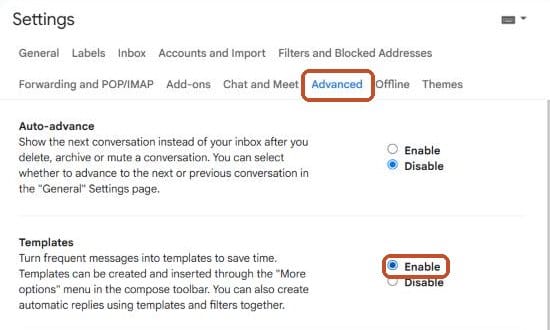
1. Switch templates on. Click the gear icon at the top right, then See all settings. Open the Advanced tab. Next to Templates, choose Enable.
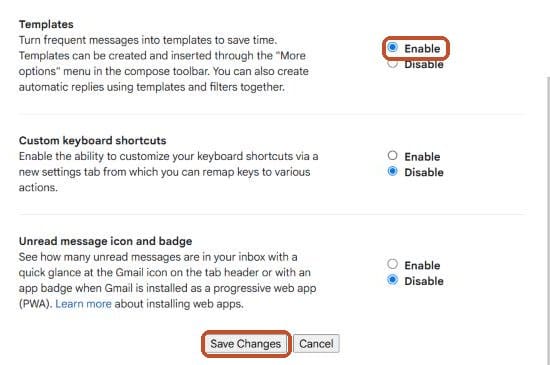
2. Save the change. Scroll to the bottom of the page and click Save Changes. Gmail reloads.
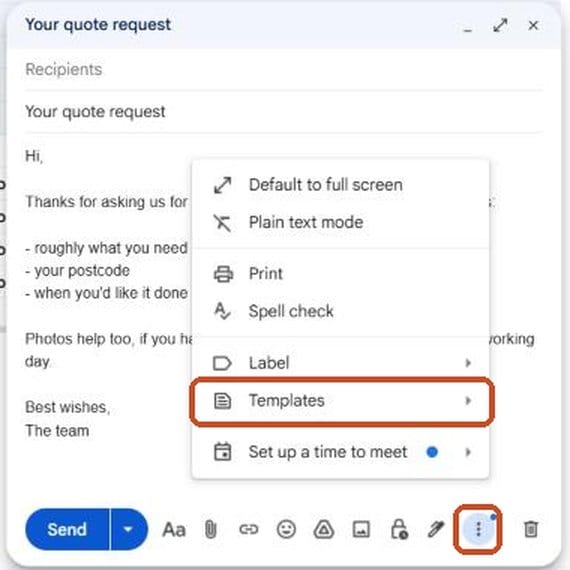
3. Write the reply once. Click Compose. Type a subject and the message you send most often. Leave the To box empty. Then click the three dots (More options) at the bottom right of the email, and point to Templates.
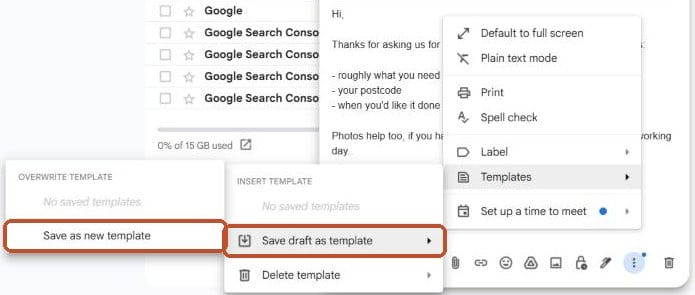
4. Save it as a template. Choose Save draft as template, then Save as new template.
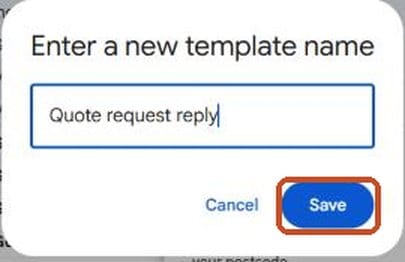
5. Name it. Gmail suggests the subject as the name. Change it to something you'll recognise in a list, such as Quote request reply, and click Save. You can now close this email without sending it.
Use a template
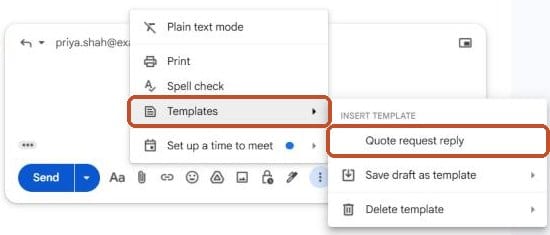
6. Drop it into a reply. Open the email you want to answer and click Reply. Click the three dots (More options), then Templates. Under Insert template, click the one you want.
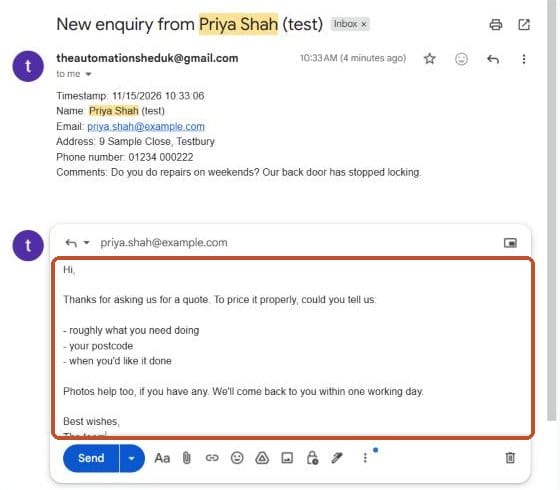
7. Check it and send. The template fills the reply, with the right address already in place. Add the person's name or anything specific, then click Send.
Set an automatic reply for when you're away
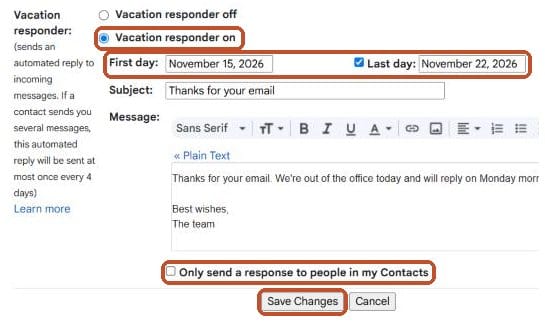
8. Turn on the out-of-office reply. Click the gear icon, then See all settings. On the General tab, scroll down to Out of Office AutoReply (called Vacation responder if your Gmail is set to US English) and turn it on. Set the First day, tick Last day and set it too, so it switches itself off. Type a subject and message. Then scroll down and click Save Changes.
9. Know how to switch it off. While it's on, a yellow bar at the top of Gmail shows the subject of your reply. Click End now to switch it off early.

If it doesn't work
- There's no Templates option under the three dots: templates are still switched off. Go back to step 1 and make sure you clicked Save Changes.
- Templates shows "No saved templates": you haven't saved one yet. Follow steps 3 to 5.
- Someone didn't get your away message: it only goes to each person once every few days, as the reality check explains.
The reality check
Templates don't fill in names. Each template starts with exactly the same words every time. Start yours with "Hi," and add the name yourself, or leave it as it is. If you need mail merge (emails that fill in each person's details), that's a different tool.
The away message isn't sent every time. Gmail says your automatic reply usually goes to each person only the first time they write. It sends again if the same person writes after four days. It doesn't reply to emails in your spam folder or to mailing lists.
Away messages reach more people than you think. Suppliers, booking systems and anyone else who writes will get it. If you'd rather it only went to people you know, tick Only send a response to people in my Contacts. But then new customers won't get it, and they're often the ones who need it most.
Don't put too much in an away message. It goes to anyone who writes to you, including scammers. Say when you're back and who to call. Leave out your home address and holiday plans.
Keep templates up to date. A template with last year's prices or an old phone number is worse than none. Have a look through them every few months. To change one, insert it into a new email, edit it, and save it over the old one (Save draft as template, then pick its name under Overwrite template).
Official pages to check
This guide is independent and drafted with AI, then reviewed and fact-checked against hands-on experience with these tools before publishing (see How we make our guides). Tool interfaces change from time to time — if a button has moved, the overall steps still apply. The tools named are common examples, not the only options.
Free members get our ready-to-paste reply pack, how to send a template automatically to every quote request, and our full troubleshooting notes in the Workbench below.